Vehicle Managements
Scrollengine's Vehicle Management feature gives you full control over your delivery fleet. Register every vehicle in your fleet — from bicycles and scooters to vans and box trucks — with detailed specifications so that route planning accounts for real-world constraints like cargo dimensions, payload weight, and fuel type.
Vehicle Management is currently in beta. The feature is fully functional but may receive updates and improvements.
Why Vehicle Management Matters
Effective last-mile delivery depends on matching the right vehicle to the right route. A large furniture order shouldn't be assigned to a two-wheeler, and a single envelope doesn't need a semi truck. By maintaining accurate vehicle records in Scrollengine, you enable:
- Smarter route planning — Routes respect each vehicle's dimensions and weight limits, preventing overloading and failed deliveries.
- Accurate capacity utilization — Know exactly how much cargo volume and weight each vehicle can handle before dispatching.
- Driver-vehicle association — Pair drivers with specific vehicles so dispatchers always know who is driving what.
- Fleet visibility — Get a centralized view of your entire fleet with registration details, type, and capacity at a glance.
Viewing Your Fleet
Navigate to Drivers & Vehicles > Vehicles in the left sidebar. The Vehicles tab displays all vehicles that have been added to your account.
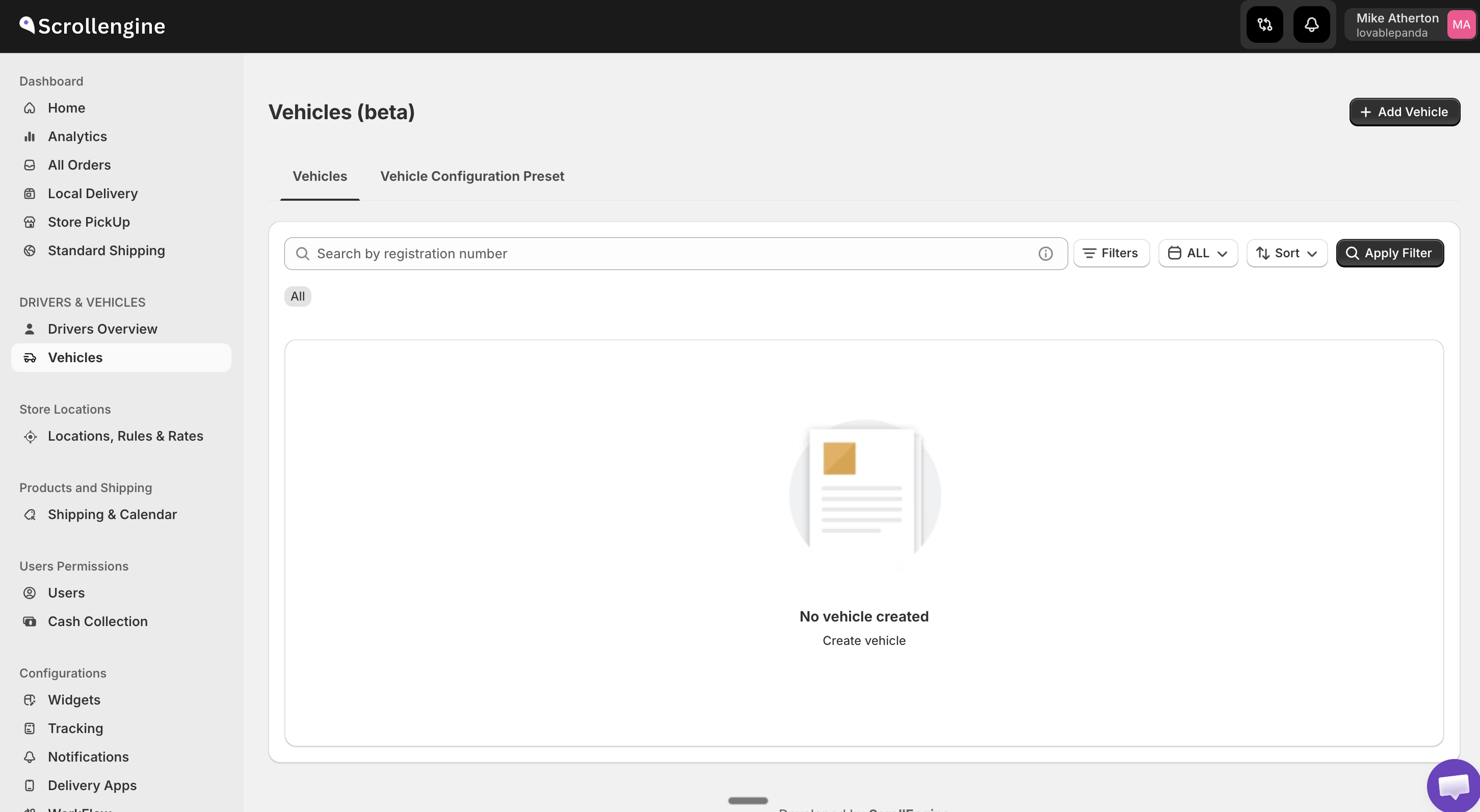
From this page you can:
- Search vehicles by registration number
- Filter vehicles using the filter options
- Sort the list to find vehicles quickly
- Add Vehicle using the button in the top-right corner
If you haven't added any vehicles yet, the page will show an empty state with a Create vehicle link to get started.
The page also has a second tab — Vehicle Configuration Preset — which lets you manage reusable vehicle templates (covered below).
Adding a New Vehicle
Click the + Add Vehicle button in the top-right corner to open the Create Vehicles form.
Vehicle Details
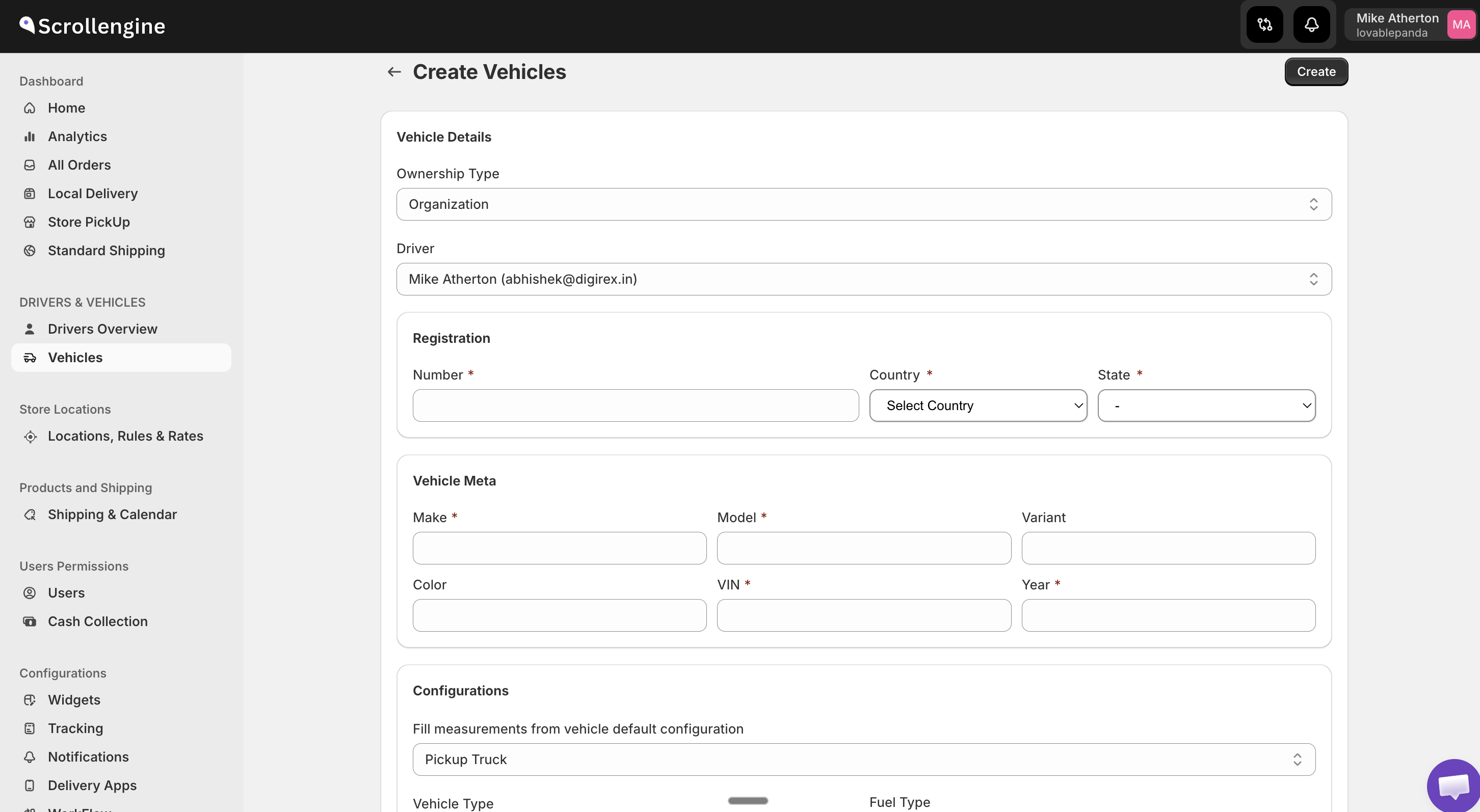
| Field | Description |
|---|---|
| Ownership Type | Whether the vehicle is owned by the Organization or the individual driver |
| Driver | Assign a driver to this vehicle from your existing drivers list |
Registration
| Field | Description |
|---|---|
| Number | The vehicle's registration / license plate number (required) |
| Country | Country of registration (required) |
| State | State or province of registration (required) |
Vehicle Meta
Provide identifying details about the vehicle itself:
| Field | Description |
|---|---|
| Make | Manufacturer (e.g., Ford, Toyota, Honda) (required) |
| Model | Vehicle model (e.g., Transit, HiAce) (required) |
| Variant | Specific variant or trim level |
| Color | Vehicle color |
| VIN | Vehicle Identification Number (required) |
| Year | Year of manufacture (required) |
Configurations
This is where you define the physical specifications that matter for delivery planning.
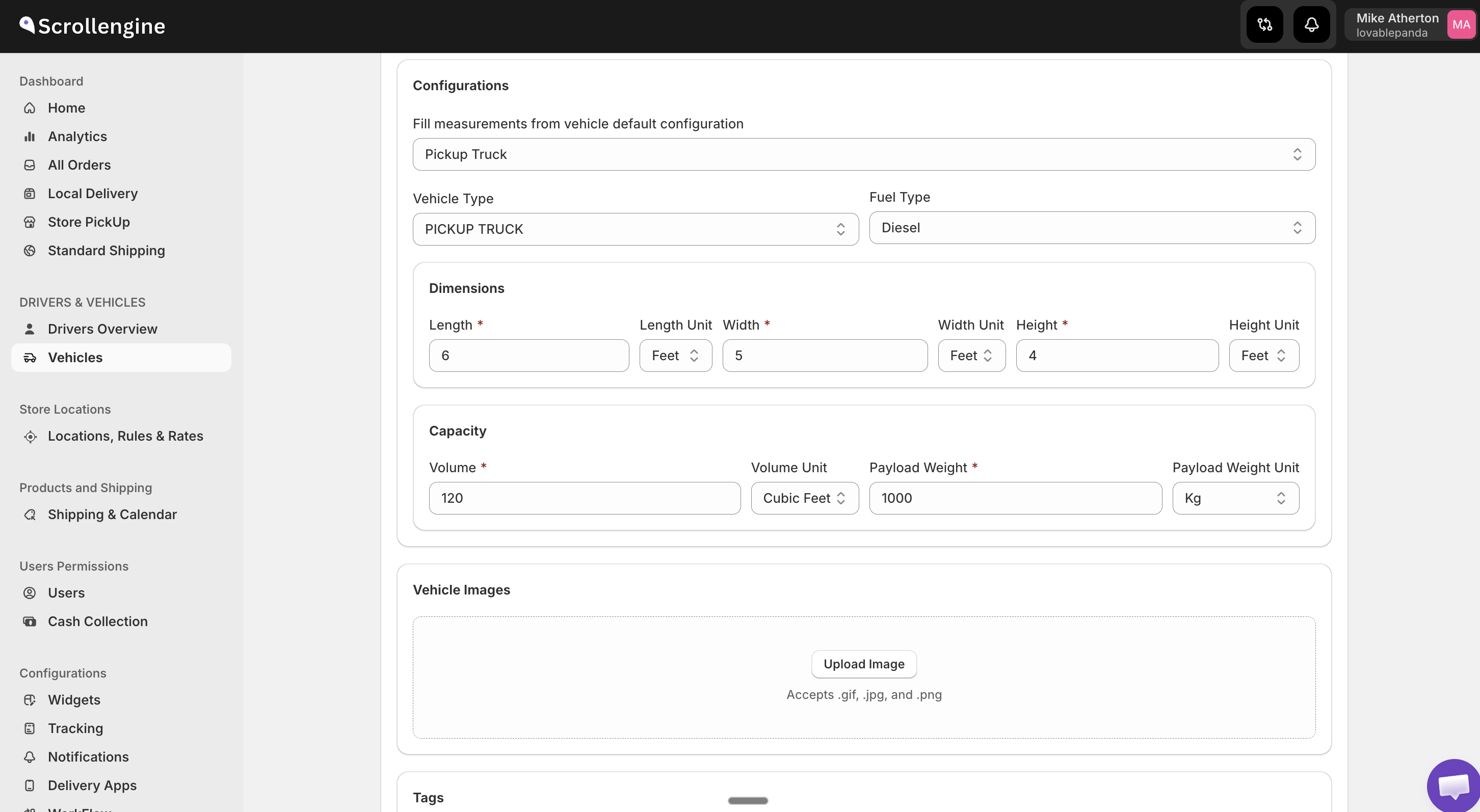
You can either fill measurements manually or auto-fill them from a Vehicle Configuration Preset (see next section).
| Field | Description |
|---|---|
| Fill measurements from vehicle default configuration | Select a preset to auto-populate dimensions and capacity |
| Vehicle Type | Category of vehicle (e.g., Pickup Truck, Van, Two Wheeler, Bicycle) |
| Fuel Type | Fuel type (e.g., Diesel, Petrol, Electric, CNG) |
Dimensions
| Field | Description |
|---|---|
| Length | Cargo area length (required) |
| Length Unit | Unit of measurement (Feet, Meters, etc.) |
| Width | Cargo area width (required) |
| Width Unit | Unit of measurement |
| Height | Cargo area height (required) |
| Height Unit | Unit of measurement |
Capacity
| Field | Description |
|---|---|
| Volume | Total cargo volume (required) |
| Volume Unit | Unit of measurement (Cubic Feet, Cubic Meters, etc.) |
| Payload Weight | Maximum weight the vehicle can carry (required) |
| Payload Weight Unit | Unit of measurement (Kg, Lbs, etc.) |
Vehicle Images
Upload photos of the vehicle for easy identification. Accepted formats: .gif, .jpg, and .png.
Tags
Add tags to organize and categorize your vehicles (e.g., "refrigerated", "fragile-goods", "downtown-only").
Once all fields are filled, click Create in the top-right corner to save the vehicle.
Vehicle Configuration Presets
Configuration presets let you define standard vehicle templates with pre-filled dimensions and capacity values. Instead of manually entering measurements every time you add a new vehicle of the same type, simply select a preset and the values are populated automatically.
Viewing Presets
From the Vehicles page, switch to the Vehicle Configuration Preset tab.
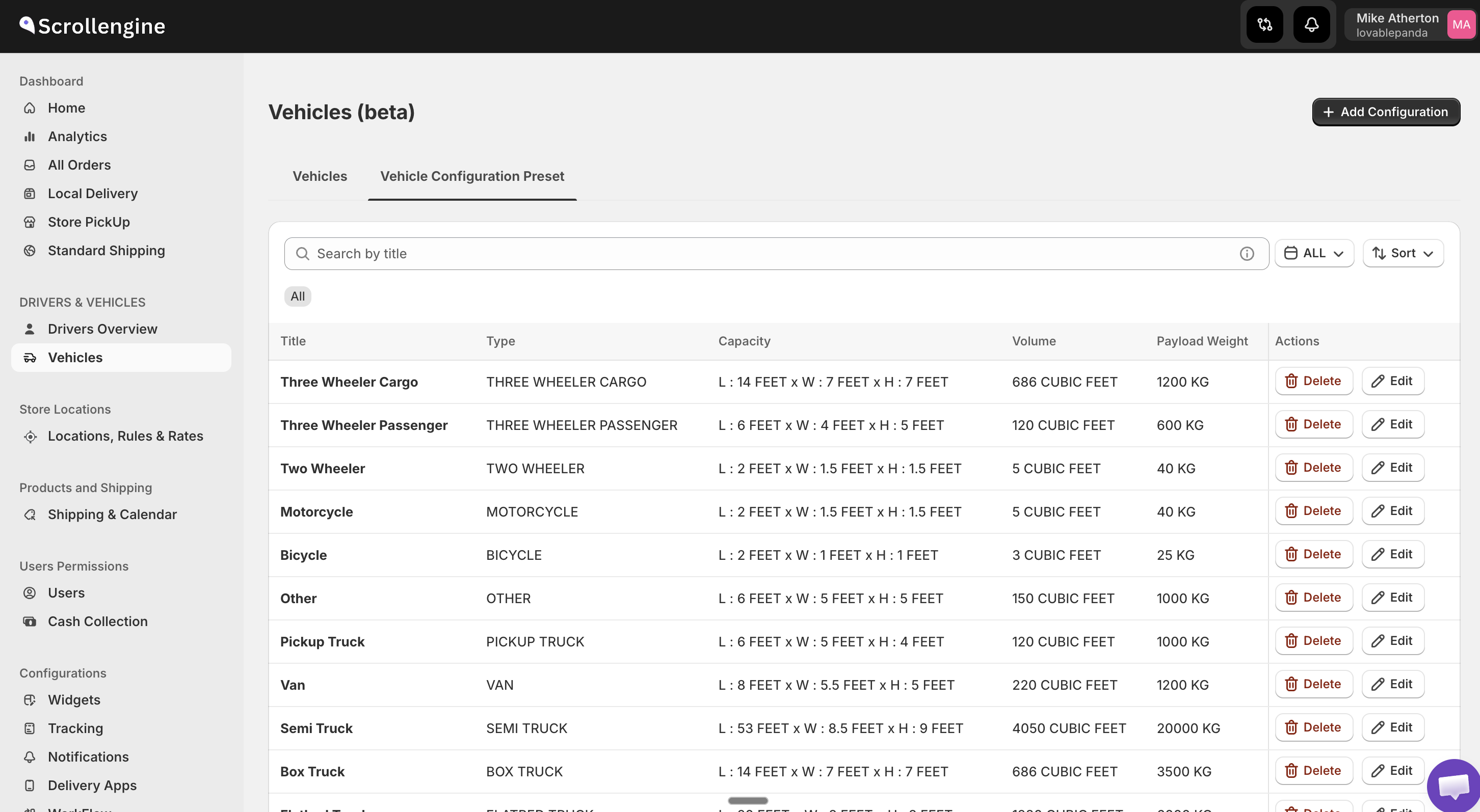
Scrollengine includes a set of built-in presets covering common vehicle types:
| Preset | Type | Capacity | Volume | Payload Weight |
|---|---|---|---|---|
| Three Wheeler Cargo | Three Wheeler Cargo | L: 14 ft, W: 7 ft, H: 7 ft | 886 Cubic Feet | 1200 Kg |
| Three Wheeler Passenger | Three Wheeler Passenger | L: 5 ft, W: 4 ft, H: 5 ft | 120 Cubic Feet | 600 Kg |
| Two Wheeler | Two Wheeler | L: 2 ft, W: 1.5 ft, H: 1.5 ft | 5 Cubic Feet | 40 Kg |
| Motorcycle | Motorcycle | L: 2 ft, W: 1.5 ft, H: 1.5 ft | 5 Cubic Feet | 40 Kg |
| Bicycle | Bicycle | L: 2 ft, W: 1 ft, H: 1 ft | 3 Cubic Feet | 25 Kg |
| Pickup Truck | Pickup Truck | L: 8 ft, W: 5 ft, H: 4 ft | 100 Cubic Feet | 1000 Kg |
| Van | Van | L: 8 ft, W: 5.5 ft, H: 5 ft | 220 Cubic Feet | 1000 Kg |
| Semi Truck | Semi Truck | L: 53 ft, W: 8.5 ft, H: 9 ft | 4050 Cubic Feet | 20000 Kg |
| Box Truck | Box Truck | L: 14 ft, W: 7 ft, H: 7 ft | 886 Cubic Feet | 3500 Kg |
Each preset row shows the Title, Type, Capacity (dimensions), Volume, and Payload Weight. You can Delete or Edit any preset using the action buttons.
Creating a Custom Preset
If the built-in presets don't match your fleet, you can create your own. Click the + Add Configuration button in the top-right corner of the presets tab.
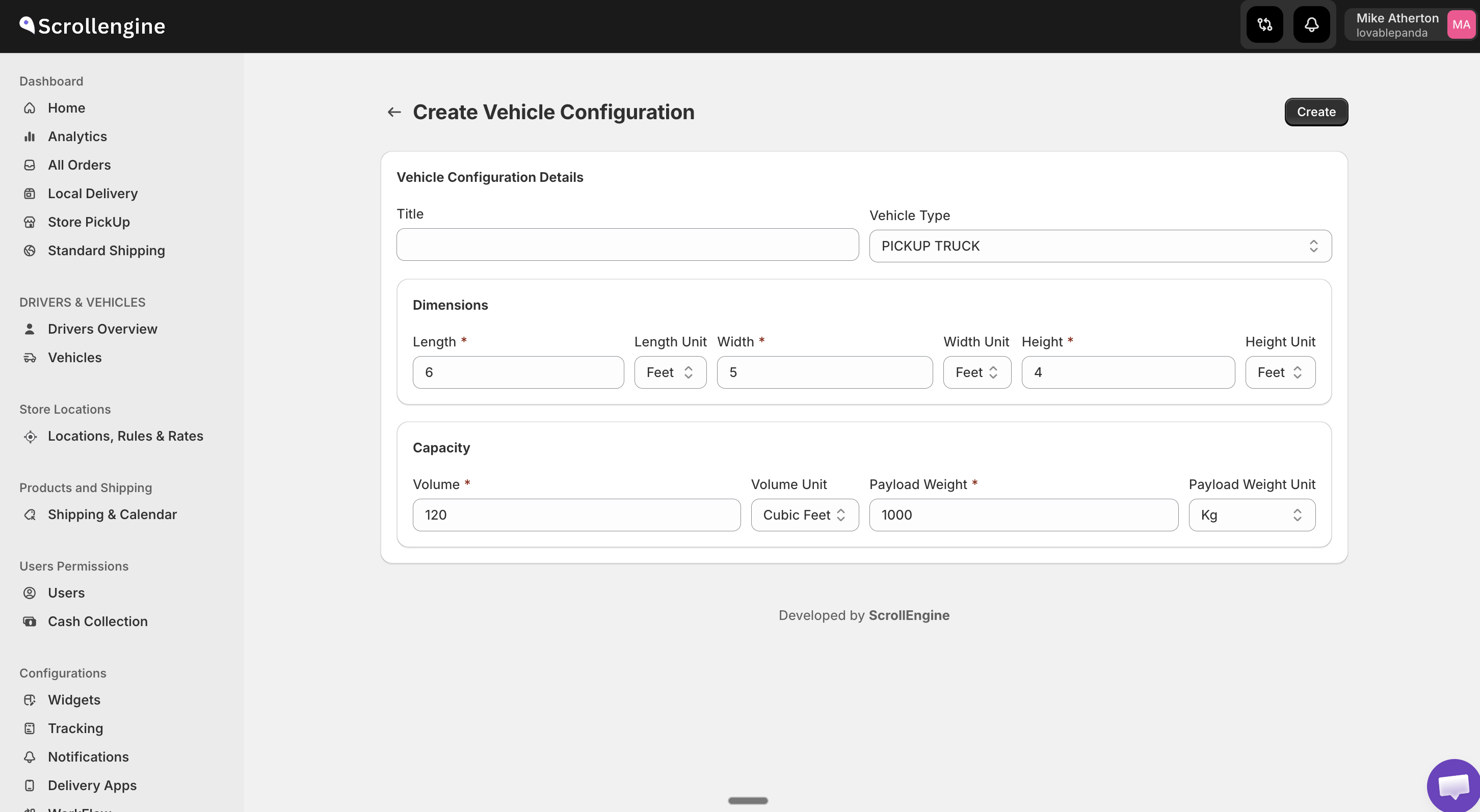
Fill in the following:
| Section | Fields |
|---|---|
| Vehicle Configuration Details | Title (name of the preset), Vehicle Type (e.g., Pickup Truck, Van) |
| Dimensions | Length, Width, Height — each with its own unit selector |
| Capacity | Volume (with unit), Payload Weight (with unit) |
Click Create to save your custom preset. It will now appear in the presets list and be available when adding new vehicles.
Assigning Vehicles to Drivers
When creating or editing a vehicle, use the Driver dropdown to assign it to a specific driver. This links the vehicle to the driver's profile, so when routes are planned, the dispatcher knows which vehicle the driver will be using.
You can also assign vehicles when creating a route — select both a driver and a vehicle for the route.
Best Practices
- Keep registrations current — Update registration details, VIN, and ownership information whenever they change.
- Use presets for fleet consistency — If you operate multiple vehicles of the same type, create a preset so every vehicle of that type has consistent dimension and capacity data.
- Set accurate capacity limits — Realistic volume and payload weight values prevent overloading and ensure route optimization works correctly.
- Tag vehicles by capability — Use tags like "refrigerated", "oversized", or "city-only" to quickly filter vehicles when planning specialized deliveries.
- Upload vehicle images — Photos help drivers and dispatchers quickly identify the right vehicle, especially in larger fleets.